

Table of Contents
- Why Your Fitness Tracker Stops Syncing
- Check Bluetooth Connectivity and Fitness Tracker Bluetooth Connection Issues
- Restart Your Wearable Device and Smartphone
- Clear Application Cache and Data from Your Companion App
- How to Force Sync Your Fitness Tracker
- Update Firmware and Software Versions
- Re-pair Your Device via the Companion Application
- Verify App Permissions and Privacy Settings
- Frequently Asked Questions
Last Updated: September 27, 2026
Why Your Fitness Tracker Stops Syncing
When your fitness tracker won't sync with your phone, it's usually one of a few specific issues. The problem isn't that your device is broken. It's that the connection between your wearable and smartphone has dropped or gotten confused. Most sync failures come down to Bluetooth connectivity, app permissions, or outdated software.

Check Bluetooth Connectivity and Fitness Tracker Bluetooth Connection Issues
Bluetooth is the bridge between your fitness tracker and phone. If that connection drops, syncing stops. The most common reason your fitness tracker not syncing is a weak or disconnected Bluetooth link.
Verify Bluetooth is enabled on both devices
Start here. It sounds basic, but this solves the problem for many people.
On your phone:
- Open Settings
- Look for Bluetooth (Android) or Bluetooth (iPhone)
- Make sure it's turned ON (not just available)
- The toggle should be blue or green, not gray
On your fitness tracker:
- Check the device settings
- Navigate to Bluetooth or Connectivity
- Confirm Bluetooth is enabled
- Some trackers have a physical button to toggle Bluetooth
Check the distance between devices
Bluetooth has a range limit. Most fitness trackers work within 30 feet of your phone. But walls, metal objects, and interference can reduce that range significantly.
Common interference sources:
- Microwave ovens
- WiFi routers
- Other Bluetooth devices (headphones, speakers)
- Metal filing cabinets or shelving
- Concrete walls
Restart Your Wearable Device and Smartphone
A restart clears temporary glitches that block syncing. Think of it as giving both devices a fresh start.
Restart your fitness tracker
Most trackers restart the same way:
- Hold the power button for 10-15 seconds
- The screen will go black
- Wait for the device logo to appear
- Release the button once you see the startup screen
Some trackers use a different method. Check your device manual if the power button doesn't work. A few models require you to remove the battery or use a specific button combination.
Restart your phone
Restarting your phone clears app cache and resets Bluetooth connections.
For iPhone:
- Press and hold the power button and volume button together
- Slide to power off
- Wait 10 seconds
- Press the power button again to turn it back on
For Android:
- Press and hold the power button
- Tap Restart (or Power Off, wait 10 seconds, then turn it back on)
- Wait for the phone to fully load
Clear Application Cache and Data from Your Companion App
Your fitness tracker's companion app stores temporary files called cache. Over time, corrupted cache can block syncing. Clearing it forces the app to rebuild its connection from scratch.
Clear cache on Android
Clearing cache on Android is simple and safe. It won't delete your data.
-
Open Settings
-
Tap Apps or Application Manager
-
Find your fitness tracker's companion app
-
Tap Storage
-
Select Clear Cache
-
Confirm
-
Go back to the app's Storage settings
-
Select Clear Data
-
Confirm
-
Open the app and log in again
-
Let the app rebuild its connection to your tracker
Clear cache on iPhone
iPhone handles cache differently than Android. You can't clear cache for a single app. Instead, offload the app.
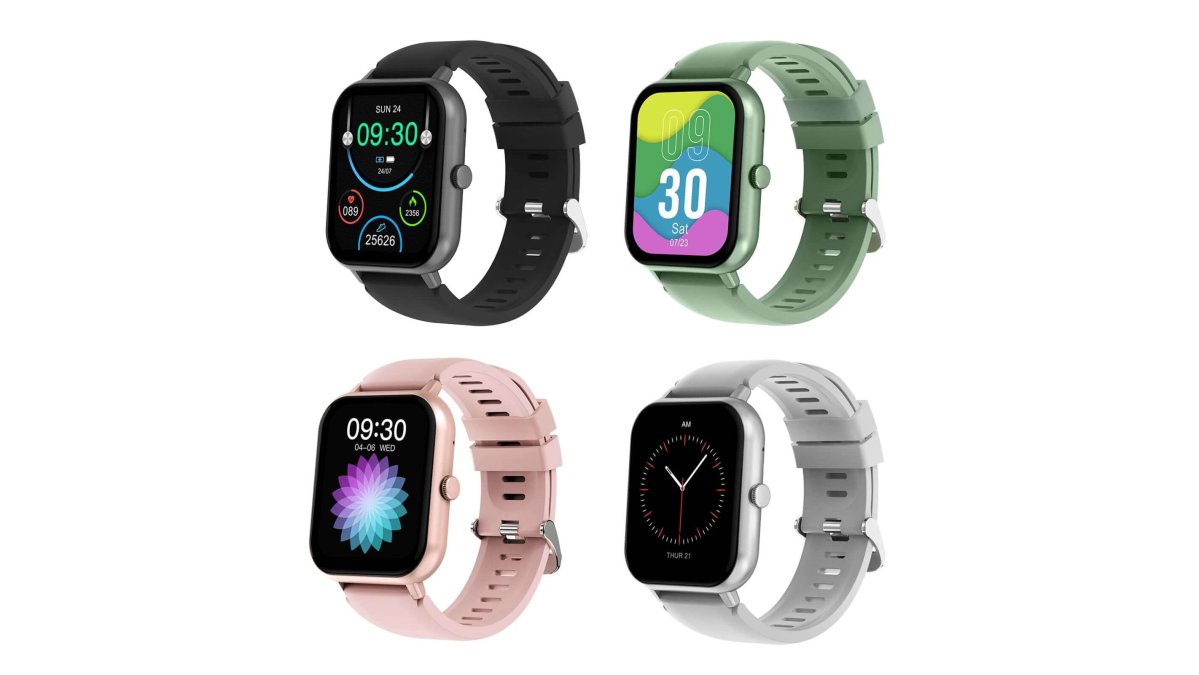
Smart Watch 1.83" IP67 Waterproof →
- Open Settings
- Tap General
- Select iPhone Storage
- Find your fitness tracker's companion app
- Tap Offload App
- Confirm
| Issue | Action | Expected Result |
|---|---|---|
| App won't connect to tracker | Clear cache (Android) or offload app (iPhone) | App rebuilds connection fresh |
| Sync still fails after cache clear | Clear data/reinstall app completely | Removes corrupted files blocking sync |
| Login required after clear | Enter credentials in companion app | Restores account access |
How to Force Sync Your Fitness Tracker
Sometimes you need to manually trigger a sync instead of waiting for automatic syncing. Manual sync gives your fitness tracker a direct command to upload data now.
Manual sync within the app
Most companion apps have a refresh or sync button.
- Open the app
- Look for a circular arrow icon or a Refresh button
- Tap it
- The app will display a loading screen
- Wait until the loading finishes
The app will pull all new data from your fitness tracker. You should see updated steps, heart rate, and workout information within 30 seconds. If the manual sync works but automatic sync doesn't, the issue is with background app refresh settings.
Enable background app refresh
Background app refresh lets your companion app sync data even when you're not actively using it. If this is off, your tracker only syncs when you open the app manually.
On iPhone:
- Open Settings
- Tap General
- Select Background App Refresh
- Find your fitness tracker's app in the list
- Make sure the toggle is ON
On Android:
- Open Settings
- Tap Apps
- Find your fitness tracker's companion app
- Tap Battery or Battery Usage
- Select Unrestricted or Allow Background Activity
- Confirm
Update Firmware and Software Versions
Outdated firmware on your fitness tracker or outdated software on your phone can cause sync failures. Manufacturers release updates that fix bugs and improve Bluetooth stability. Running old versions means you're missing those fixes.
Check for wearable device firmware updates
Firmware updates for your fitness tracker usually happen through the companion app.
- Open the app
- Look for Settings or Device Settings
- Find Firmware Update or Software Update
- Tap Check for Updates
- If an update is available, tap Download and Install
- Keep your phone and tracker close during the update
- Don't close the app or turn off either device
Update your phone's operating system
Your phone's OS controls Bluetooth performance. Outdated OS versions have known Bluetooth bugs.
On iPhone:
- Open Settings
- Tap General
- Select Software Update
- If an update is available, tap Download and Install
- Your phone will restart
On Android:
- Open Settings
- Scroll to System or About Phone
- Tap System Update
- If available, select Download and Install
- Your phone will restart
Re-pair Your Device via the Companion Application
Re-pairing is the nuclear option. It completely removes the connection between your devices and rebuilds it from scratch. Use this fix only after trying the others. But it works for nearly every sync problem.
Unpair the devices completely
Unpairing tells your phone to forget your fitness tracker entirely.
- Open your fitness tracker's companion app
- Look for Device Settings or Paired Devices
- Find your tracker in the list
- Select Unpair or Remove Device
- Confirm the removal
Now unpair from your phone's Bluetooth settings too:
- Open Settings
- Go to Bluetooth
- Find your fitness tracker in the list of paired devices
- Tap the Info icon or settings button next to it
- Select Forget or Unpair
- Confirm
Re-establish the device handshake
Now rebuild the connection fresh.
- On your phone, open your fitness tracker's companion app
- Look for Add Device or Pair New Device
- Tap it
- The app will search for nearby devices
- Your fitness tracker should appear in the list
- Tap on it to select it
- Follow the on-screen prompts to complete pairing
The device handshake process re-establishes the Bluetooth connection with clean settings. Once pairing completes, your fitness tracker should sync immediately. This fix resolves almost every sync problem because it eliminates any corrupted connection data.
Verify App Permissions and Privacy Settings
Your phone's privacy settings control what data the companion app can access. If permissions are restricted, the app can't read or sync your fitness data. This blocks syncing even if the Bluetooth connection is perfect.
Grant location and health data permissions
Most fitness trackers need location permission to track GPS routes. They also need health data permission to sync steps, heart rate, and other metrics.
On iPhone:
- Open Settings
- Tap Privacy
- Select Location Services
- Find your fitness tracker's companion app
- Make sure it's set to Always or While Using
- Go back to Privacy
- Select Health
- Find your fitness tracker's app
- Enable all available health categories (Steps, Heart Rate, Workouts, etc.)
On Android:
- Open Settings
- Tap Apps
- Find your fitness tracker's companion app
- Tap Permissions
- Enable Location
- Enable Health data or fitness data permissions
- Some Android versions call this Health Connect
Check privacy settings on your phone
Some phones have additional privacy layers that block background syncing.
On iPhone:
- Open Settings
- Tap Privacy
- Check Bluetooth Sharing
- Make sure your fitness tracker's app is allowed
- Check App Tracking Transparency
- Find your fitness tracker's app
- Enable Allow Tracking if available
On Android:
- Open Settings
- Tap Apps
- Find your fitness tracker's app
- Tap Permissions
- Ensure all permissions show as Allowed
- Check Battery Optimization
- Find your fitness tracker's app
- Set it to Not Optimized or Unrestricted
Frequently Asked Questions
Why isn't my fitness data syncing to my iPhone?
Sync failures on iPhone typically stem from disabled Bluetooth, outdated companion app software, or incorrect privacy permissions. Start by toggling Bluetooth off and on, then check that the fitness tracking app has permission to access Health data in iPhone Settings > Privacy > Health. If the issue persists, force-close the app and restart your phone. Many users find that clearing the app cache or reinstalling the companion application resolves persistent sync problems.
How do I force a sync on my fitness tracker?
Most companion apps include a manual refresh button, usually a circular arrow icon, in the main dashboard. Tap it to trigger an immediate data synchronization. For background syncing, enable background app refresh in your phone's settings (Settings > General > Background App Refresh on iPhone, or Settings > Apps > [App Name] > Battery > Background Restriction on Android). If manual sync fails, try unpairing and re-pairing your wearable device through the app's settings menu to re-establish the device handshake.
Does Bluetooth interference cause fitness tracker sync errors?
Yes. Bluetooth operates on the 2.4 GHz frequency, which is shared by Wi-Fi, microwaves, and cordless phones. If you're experiencing data latency or frequent disconnections, move away from these interference sources and keep your fitness tracker within 30 feet of your phone. Also check that your wearable device firmware is current, as older versions may have weaker wireless protocol handling. A firmware update often improves connectivity stability significantly.
What's the difference between clearing cache and resetting my fitness tracker?
Clearing cache removes temporary app data without erasing your personal information or settings, this is your first troubleshooting step and takes seconds. A full device reset erases all data and settings, returning the tracker to factory defaults. Reserve a reset for persistent problems after trying cache clearing, restarting, and re-pairing. Before resetting, ensure your activity tracking data has synced to the cloud server, or you'll lose your history. Always back up your health metrics to the companion application first.